How to Add Products to Shopify (and Fix Products Not Showing in Collections)

TL;DR: To add a product to Shopify, go to Products → Add product, enter a title and description, upload images, set pricing, inventory, and shipping, then switch the status from Draft to Active and select your sales channels. If the product doesn’t show up in a collection afterward, the cause is almost always one of five settings — we cover all of them below.

The product page you fill out in those few minutes decides whether Google can rank the item, whether shipping calculates correctly, and whether a visitor trusts the listing enough to buy. This guide walks through how to add products to Shopify step by step, then fixes the most common first-week problem: products not showing in collections.

How to add products to Shopify — illustration of a new product card being added to a store catalog on a laptop screen

How to Add Products to Shopify: 6 Steps

Every product in your store lives on a single product page inside the Shopify admin. To create one, open your admin, go to Products, and click Add product. You’ll land on a form with several sections — here’s how to fill in each one so the product works for customers, for search engines, and for your own reporting.

Step 1: Write the Product Title and Description

The title and description carry more weight than any other field. They become your page title, your search listing, and your sales pitch.

For the title, follow a simple structure: brand + product keyword + defining attribute (color, size, material). “Atlas Canvas Weekender Bag – Olive, 45L” tells a shopper and a search engine exactly what the product is. “Weekender Bag NEW SALE BEST QUALITY” tells them you’re spamming. Keep titles under 70 characters so they display in full on Google.

For the description, apply the “so what?” test to every feature. A feature alone means nothing to a buyer until you translate it into a benefit:

  • “Waterproof 600D polyester” → so what? → “Your laptop stays dry in a downpour.”
  • “YKK zippers” → so what? → “The zipper won’t jam or split after six months of daily use.”

Diagram showing how to turn a technical product feature into a customer benefit in a Shopify product description

Write two or three short paragraphs of benefit-led copy, then a scannable bullet list of specs for the shoppers who want details. Skip the wall of text — nobody reads it, and Google’s helpful content systems don’t reward padding.

Beyond text descriptions, the visual presentation and layout hierarchy of your pages play a massive role in conversion rates; a custom-designed storefront built by professional web design experts helps convey premium value and builds user trust instantly.

Shopify’s built-in AI assistant (Sidekick) can draft a description from a prompt, but treat its output as a first draft. Rewrite it in your brand’s voice before publishing.


Step 2: Upload High-Resolution Media

In the Media section, click Add file to upload images, videos, or 3D models — drag and drop, upload from your computer, or pull from a URL.

Follow Shopify’s technical limits so files upload and render correctly:

  • Images: PNG is the preferred format (JPEG and GIF also work). Maximum file size is 20 MB. Shoot on a clean background and include at least one photo per variant color.
  • Video: Up to 10 minutes long and 1 GB in size, though 30–90 seconds converts best on product pages.
  • 3D models: GLB or USDZ format. Files over 15 MB get compressed automatically by Shopify.

Name your image files descriptively before uploading (olive-canvas-weekender-front.png, not IMG_4821.png) and write alt text for each image. Both help image SEO and accessibility.

Step 3: Configure Pricing and Cost Tracking

The Pricing section has three fields, and each does a different job:

  • Price is what the customer pays at checkout.
  • Compare-at price is the “was” price. Set it higher than Price and Shopify displays the product as on sale — a classic price-anchoring move. Set Compare-at at $99 and Price at $49, and the storefront shows the markdown automatically. Leave it blank if the product isn’t discounted; a fake permanent “sale” erodes trust fast.
  • Cost per item is invisible to customers but critical for you. Enter what the product costs you to make or source, and Shopify’s reports can calculate your actual margin per product. Skip this field and your profit reports are guesswork.

Check Charge tax on this product if the item is taxable in your region.

Step 4: Set Up Inventory, SKUs, and Shipping

Inventory. Turn on Track quantity so Shopify decrements stock with every sale and stops selling when you hit zero. If your restock cycle is fast and reliable, you can additionally check Continue selling when out of stock — but remember this setting later, because it interacts with collection visibility (more on that in the troubleshooting section).

Assign each product a SKU using a consistent format you invent once and never change. Something like BAG-WKD-OLV-45 (category–model–color–size) works; the point is that you can identify a product from the code alone when you’re packing orders at 11 p.m. If you have physical retail, add barcodes too — the Shopify mobile app can scan them with your phone camera.

Shipping. Check This is a physical product for anything that ships, then enter an accurate weight. Shopify uses this weight to calculate carrier rates at checkout; leave it blank and the weight defaults to 0.1 lb, which means you undercharge for shipping on every order. For international sales, add the country of origin and the HS (Harmonized System) code so customs authorities can classify the item — you can search HS codes by keyword directly in the field.

Selling digital products or services? Uncheck the physical product box and the shipping fields disappear.

Step 5: Create Variants and Metafields

If a product comes in multiple options — sizes, colors, materials — don’t create separate products for each. Add variants instead. One product, “Canvas Weekender,” with variants Olive/Black/Navy keeps your catalog clean, consolidates reviews on one page, and avoids splitting your SEO authority across near-duplicate URLs.

Each variant gets its own price, SKU, image, and inventory count, so you can track stock of the olive 45L separately from the black 45L.

Metafields store structured custom data that the standard fields don’t cover — care instructions, ingredient lists, compatibility charts, size guides. When you pick a product category, Shopify suggests relevant metafields automatically. If your theme supports it, you can surface metafield content anywhere on the product page through the theme editor. For stores with technical products, well-used metafields are the difference between a page that answers every buyer question and a support inbox full of the same three questions.

Step 6: Set Product Status and Sales Channels

At the top right of the product page sits the Status selector, and it’s the single most common reason “my product isn’t showing up”:

  • Draft — saved, but invisible everywhere. New products start here.
  • Active — live and eligible to appear on your selected sales channels.
  • Unlisted — reachable only by direct URL. Useful for exclusive drops or link-only offers.

Comparison of the three Shopify product statuses: draft, active, and unlisted

Below status, the Publishing section controls which sales channels carry the product: Online Store, Shop app, POS, social channels, marketplaces. A product can be Active but excluded from the Online Store channel — in which case it exists, it’s live, and your website visitors will still never see it.

When everything’s filled in, click Save. You can preview exactly how the page renders on your storefront with the Preview button before you flip it to Active.

Troubleshooting: Why Are My Shopify Products Not Showing in a Collection?

You added the product, assigned it to a collection, opened your storefront — and the collection page is missing it. This is the most common post-setup problem in Shopify, and merchants routinely waste hours on the wrong fixes.

What not to do: don’t start editing your theme’s Liquid code, and don’t delete and rebuild the collection hoping it “refreshes.” In the vast majority of cases the theme is fine and the collection is fine — one product setting is filtering the item out. Run this checklist in order instead. It takes about three minutes.

If you encounter recurring database errors, collections glitching, or sync problems, hiring a team for ongoing site maintenance ensures your storefront stays optimized, secure, and bug-free.

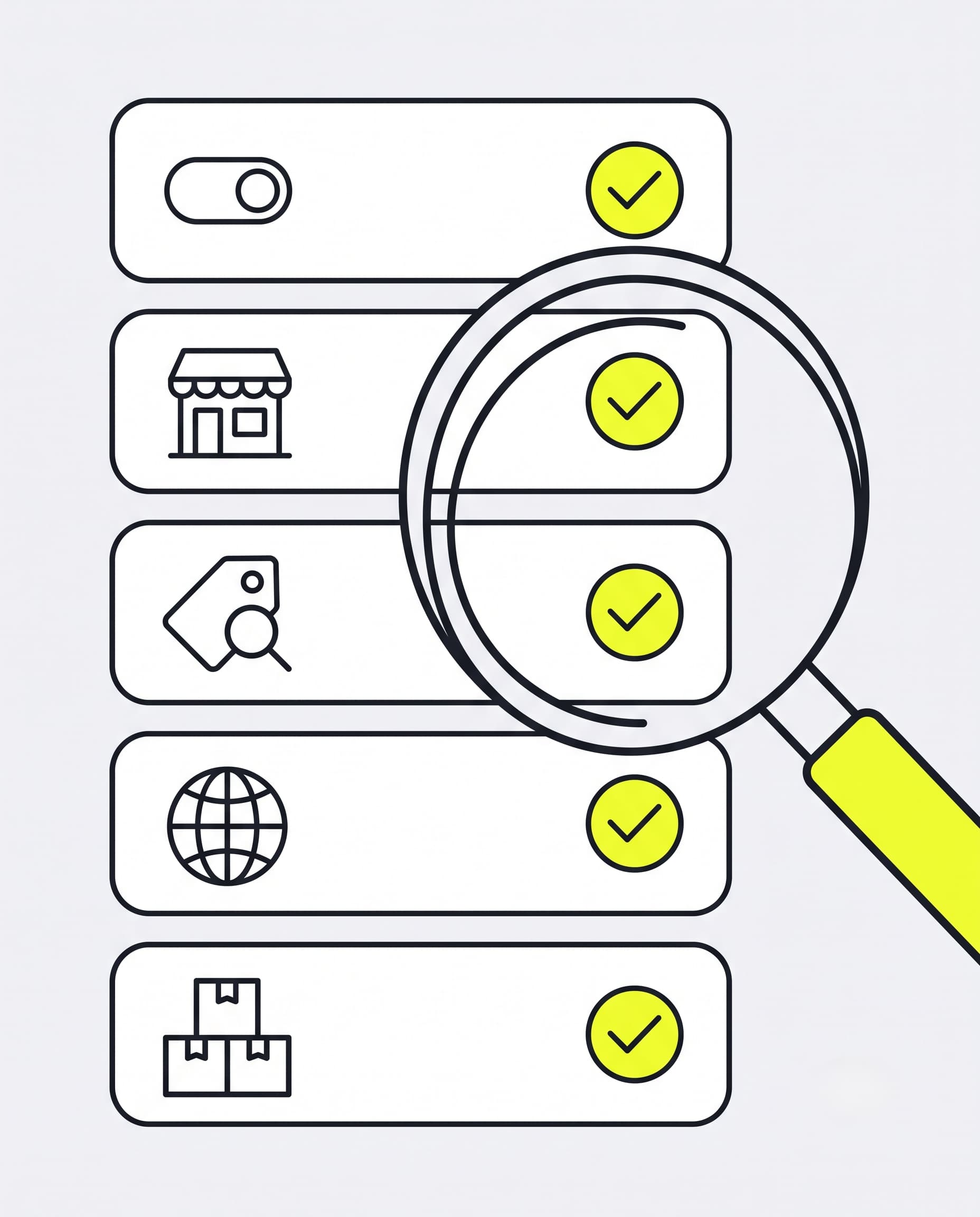
Checklist for fixing Shopify products not showing in collection — five settings to verify

Check 1: Is the Product Status Set to Active?

Open the product and look at the top right. If it says Draft, that’s your answer — draft products never appear in collections, search, or anywhere else on the storefront. Switch to Active and save.

This catches duplicated products especially often: a duplicate inherits Draft status by default unless you change it during duplication.

Check 2: Is the Online Store Sales Channel Enabled?

In the product’s Publishing section, confirm Online Store is listed and enabled. A product published only to POS or the Shop app is invisible on your website — including in collections — no matter what its status says. Click the adjust icon, tick Online Store, save.

Check 3: Do the Automated Collection Rules Actually Match?

If it’s an automated (smart) collection, the product must satisfy the collection’s conditions — and the matching is stricter than people expect:

  • Tags are case-sensitive in effect. A collection rule looking for the tag Summer will not pick up a product tagged summer. Standardize your tag casing (all lowercase is the safest convention) and audit existing tags.
  • Watch the “all conditions” vs. “any condition” toggle. A collection set to match all conditions excludes any product missing even one of them.
  • Check for typos and stray spaces in tag names — new-arrival with a trailing space is a different tag than new-arrival.

Manual collections don’t have this problem, but do confirm the product was actually added to the list and not just saved with the intention of adding it.

Check 4: Is the Product Available in the Customer's Market?

This one trips up even experienced merchants because everything looks correct in the admin. If you use Shopify Markets to sell internationally, product availability is set per market. A product excluded from your “Europe” market renders the collection page differently for a visitor browsing from Germany than for you browsing from your home country — you see the product; they don’t.

Check Settings → Markets, open the relevant market’s catalog, and confirm the product is included. If customers in one specific region report a missing product while everything looks fine on your end, start here.

Check 5: Is Inventory Policy Hiding Out-of-Stock Products?

If the product’s tracked quantity is zero and Continue selling when out of stock is off, several things can hide it: many themes hide sold-out products from collection grids, and some merchants have collection conditions or apps filtering on stock level. Either restock the item, enable continue-selling (if backorders make sense for you), or accept that it stays hidden until inventory returns.

Worked through all five and the product still won’t show? Then — and only then — is it worth looking at theme-level collection filters or a recently installed app that modifies collection queries. That’s also the point where a developer pays for themselves in an hour instead of your afternoon.

How to Import Products to Shopify in Bulk via CSV

Manual entry is fine for your first twenty products. At fifty, it’s a bottleneck; at five hundred, it’s a full-time job you didn’t apply for.

When to switch to CSV: you’re migrating from another platform (WooCommerce, Etsy, a legacy cart), a supplier hands you a catalog file, or you’re launching a large seasonal assortment at once.

How it works: on the Products page, click Import in the top right. Download Shopify’s sample CSV first — it shows the exact column headers and formatting the importer expects. Fill in your data, upload, and Shopify creates or updates products in bulk. You can also Export your existing catalog to CSV at any time, which doubles as a backup before large edits.

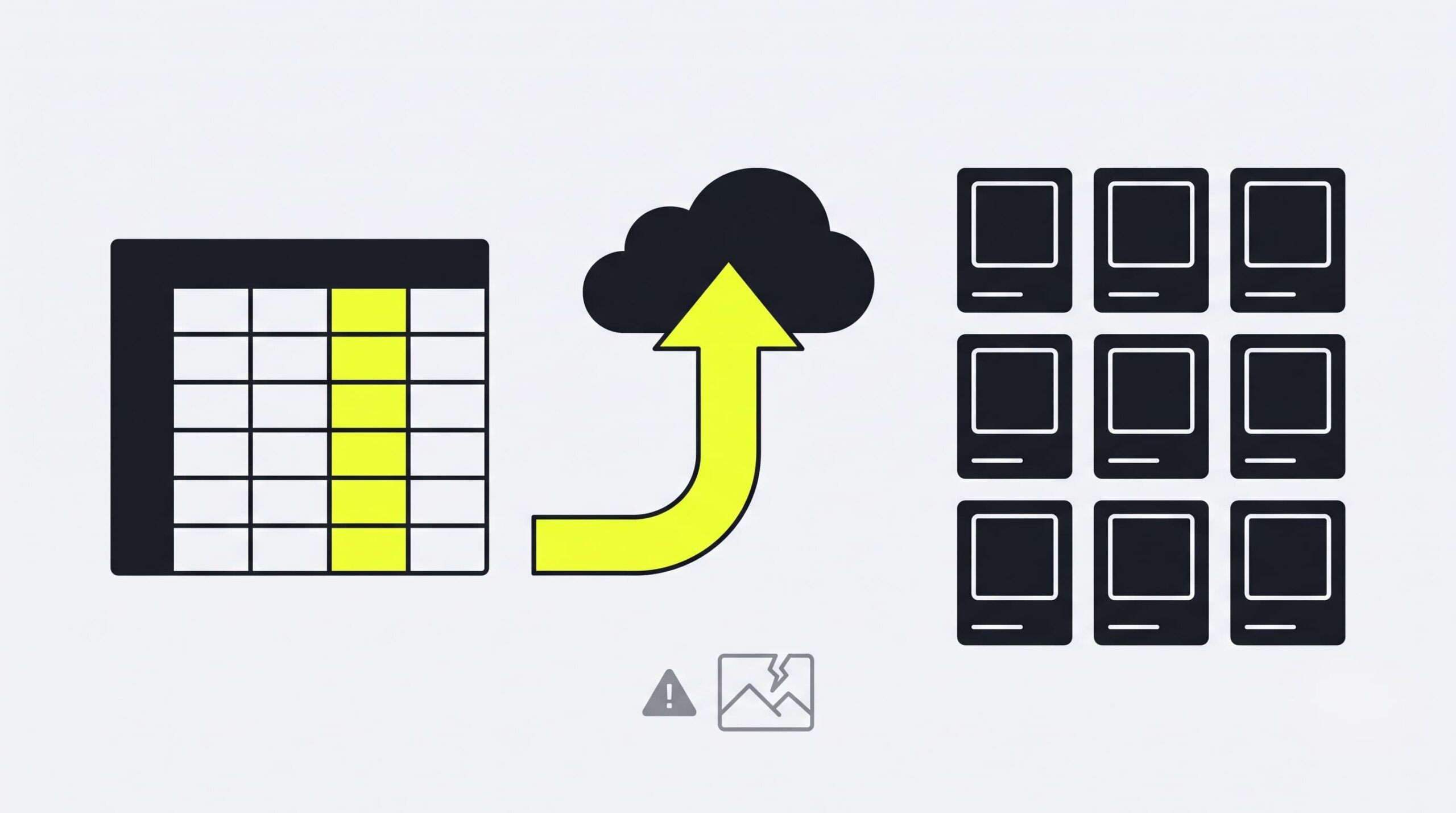
Diagram showing how to import products to Shopify in bulk via CSV, from spreadsheet to organized catalog

The mistakes that break imports:

  • Image URLs must be publicly accessible. The CSV doesn’t contain images — it contains links to them. If your images sit on a password-protected server or a local drive path, the import completes but every product loads without photos. Host images somewhere public first.
  • Variant rows must repeat the same handle. Each variant of one product is a separate row sharing the parent product’s handle; break the pattern and you get duplicate products instead of variants.
  • Test with 5–10 rows before importing 5,000. Fix formatting issues on a small batch, then run the full file.

For recurring supplier feeds or complex migrations, a bulk-management app or a custom import script beats hand-editing spreadsheets — this is a job we build for clients regularly, precisely because a botched import is much slower to clean up than to prevent.

Shopify Product Page Optimization: 3 Tips to Increase Conversions

A correctly configured product gets you into the catalog. These three changes get it into the cart.

1. Write Compelling, Scannable Descriptions

Most visitors skim. Structure descriptions so a skimmer gets the pitch in five seconds and a researcher gets the detail below:

  1. Open with the outcome — one or two sentences on what the product does for the buyer’s life, not what it’s made of.
  2. Follow with benefit-led bullets. Each bullet: bold benefit first, supporting spec after. “Survives the commute — 600D waterproof shell with reinforced base.” This pattern (benefit → grounding → next) reads fast and answers “why should I care?” line by line.
  3. Close with proof. A customer quote, a review count, a guarantee. Shoppers trust other shoppers more than they trust you.

2. Optimize the Call-to-Action Button

The Add to Cart button has one job: be impossible to miss and effortless to press. Reduce friction on three fronts:

  • Position it above the fold — visible without scrolling, on both desktop and mobile. If a visitor has to hunt for the button, some percentage of them won’t.
  • Make it contrast. The button should be the highest-contrast element on the page, in a color that stands apart from your background and imagery.
  • Use an action verb. “Add to Cart” or “Buy Now” beats “Submit” or vague labels. The copy should describe exactly what happens on click.

3. Design Mobile-First Layouts

For most stores, mobile is now the majority of traffic — often 70% or more — and mobile visitors are the least forgiving. Smartphone showing a Shopify product page with a large thumb-friendly add to cart buttonThree fixes with outsized impact:

  • Size touch targets for thumbs. Buttons and variant selectors need at least a 44×44px tappable area with breathing room around them. Mis-taps kill checkouts.
  • Compress images for mobile bandwidth. A 20 MB hero photo that looks glorious on your studio monitor takes four seconds to load on 4G — and page speed affects both conversion and rankings.
  • Test the full purchase flow on a real phone. Not the browser’s mobile emulator — an actual device. Tap through from collection page to order confirmation and fix everything that annoys you, because it annoys your customers more.

FAQ: Adding Products to Shopify

Quick answers to the most common questions about adding and managing products in your Shopify store.

What's the difference between deleting and archiving a product?

Deleting removes the product from Shopify permanently — it cannot be restored, and its sales history references break. Archiving hides the product from your storefront and moves it to the Archived tab in your admin, where it keeps its data and can be unarchived in two clicks. Rule of thumb: archive by default, delete only when you’re certain the product is never coming back.

How many tags can I add to one product in Shopify?

Up to 250 tags per product, each up to 255 characters, separated by commas. Stores on Shopify Plus have no tag limit. In practice, a handful of consistently formatted tags beats dozens of ad-hoc ones — especially if automated collections depend on them.

How do I duplicate a similar product to save time?

Open the product and click Duplicate. You can rename the copy, choose which details carry over, and set its status before creating it. Two things to remember: duplicates default to Draft status (change it when ready), and 3D models and videos don’t copy over — re-add those manually. For products that only differ by an option like color or size, add a variant instead of duplicating.

How do I add products to a collection in Shopify?

Yes. In the Product organization section of the product page, use the Collections field to add the product to any manual collection directly. For automated collections, you don’t add products manually at all — just make sure the product’s tags, type, vendor, or price match the collection’s rules and it joins automatically.

How do I add a collection on Shopify?

Go to Products → Collections → Create collection in your admin. Choose the collection type: manual (you add products to it one by one) or automated (products join automatically when they match conditions like tag, type, vendor, or price). Add a title and image, set the conditions or products, and click Save.

Ready to Scale Your Shopify Store?

Sign up for our Shopify Growth newsletter to get weekly actionable tips on SEO, collection structure, and conversion-boosting hacks.

"*" indicates required fields

What can we help you with?

Recommended for You

Read more expert guides, case studies, and platform reviews handpicked to help you scale your online store.

Illustration of filtering automated Council Bluffs bot traffic out of Shopify store analyticsEcommerce
August 17, 2026
What is Council Bluffs Shopify Traffic
Seeing traffic spikes from Council Bluffs, Iowa on Shopify? Discover what causes this automated bot traffic and how to filter it out in GA4 and Shopify Analytic...
Read More
WooCommerce conversion rate optimization funnel showing discover, choose and purchase stagesEcommerce
August 10, 2026
WooCommerce Conversion Rate Optimization
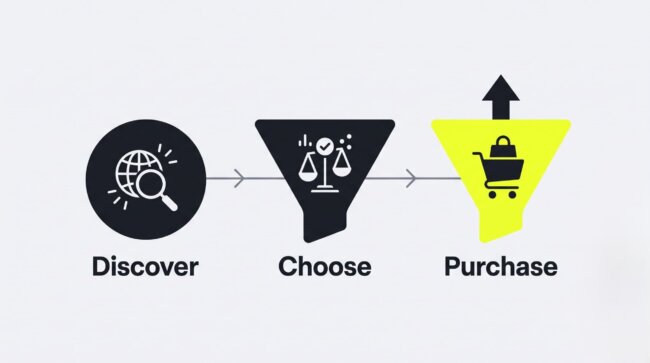
WooCommerce conversion rate optimization is a data-driven framework for finding the exact points where shoppers give up — slow pages, cluttered checkouts, missing...
Read More
Illustration showing how to fix the color schemes must be defined error in Shopify Dawn theme customizerEcommerce
August 21, 2026
How to Fix Color Schemes Must Be Defined
Fix the "color schemes must be defined in settings_data" error in Shopify Dawn (v11+). Learn 3 quick ways to restore your JSON presets and unblock the theme cus...
Read More
How to add products to Shopify — illustration of a new product card being added to a store catalog on a laptop screenEcommerce
July 17, 2026
How to Add Products to Shopify
To add a product to Shopify, go to Products → Add product, enter a title and description, upload images, set pricing, inventory, and shipping, then switch the status...
Read More
Woocommerce vs shopify comparison 2026 — platform overview illustrationEcommerce
August 4, 2026
WooCommerce vs Shopify
WooCommerce vs Shopify remains the platform decision that defines long-term costs and development flexibility for US merchants in 2026. Shopify sells speed and ...
Read More
Cloud ecommerce platform connecting storefront, payments, and analytics — illustrationEcommerce
July 27, 2026
What Is a Cloud eCommerce Platform
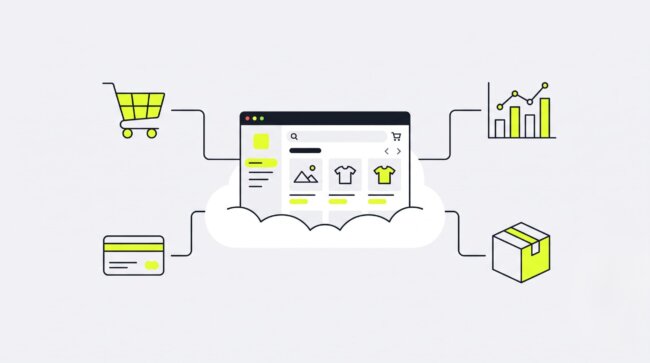
Aging on-premises servers slow every product launch, drain IT budgets, and buckle under Black Friday traffic. A cloud ecommerce platform removes that bottleneck:...
Read More