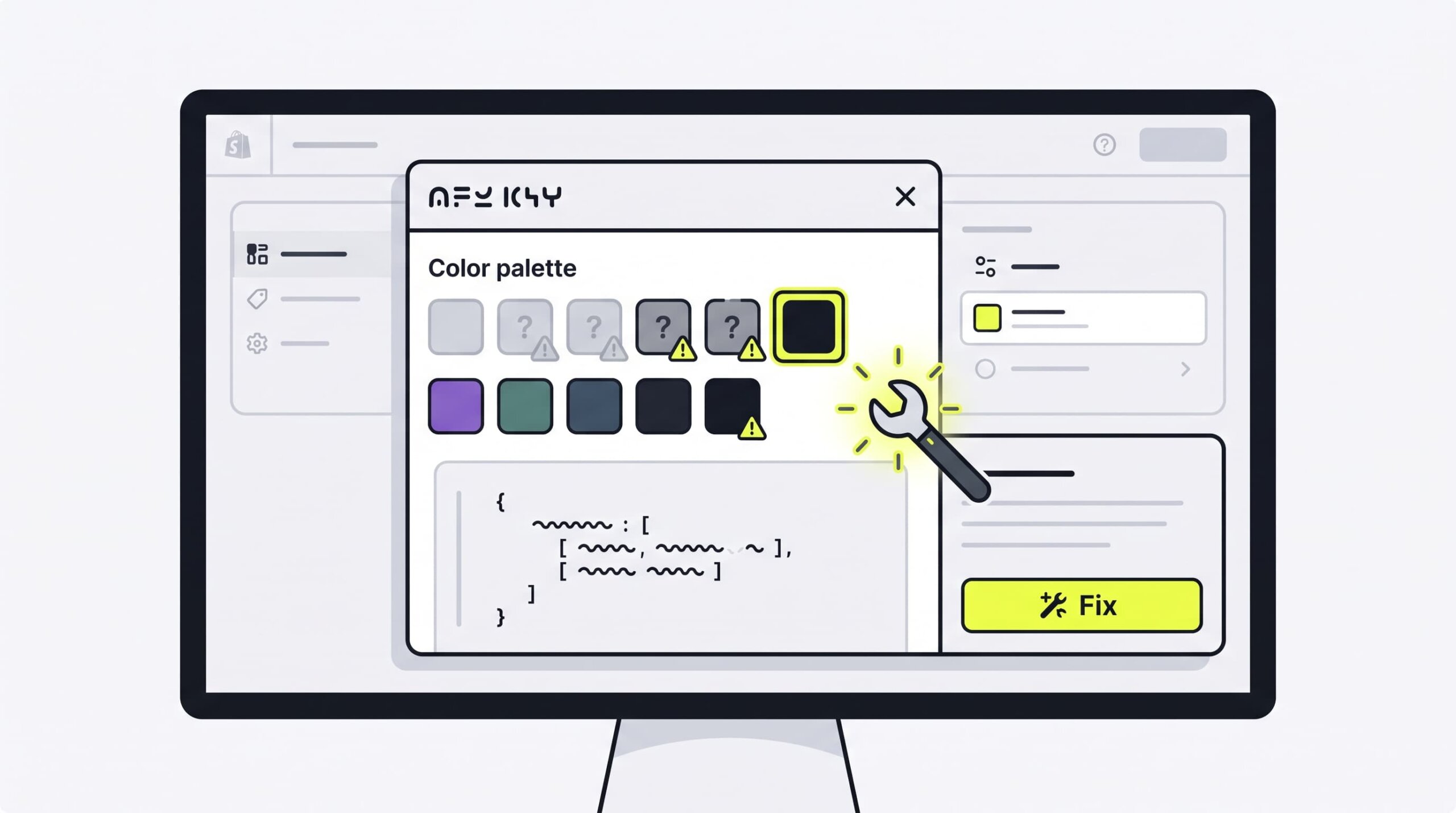
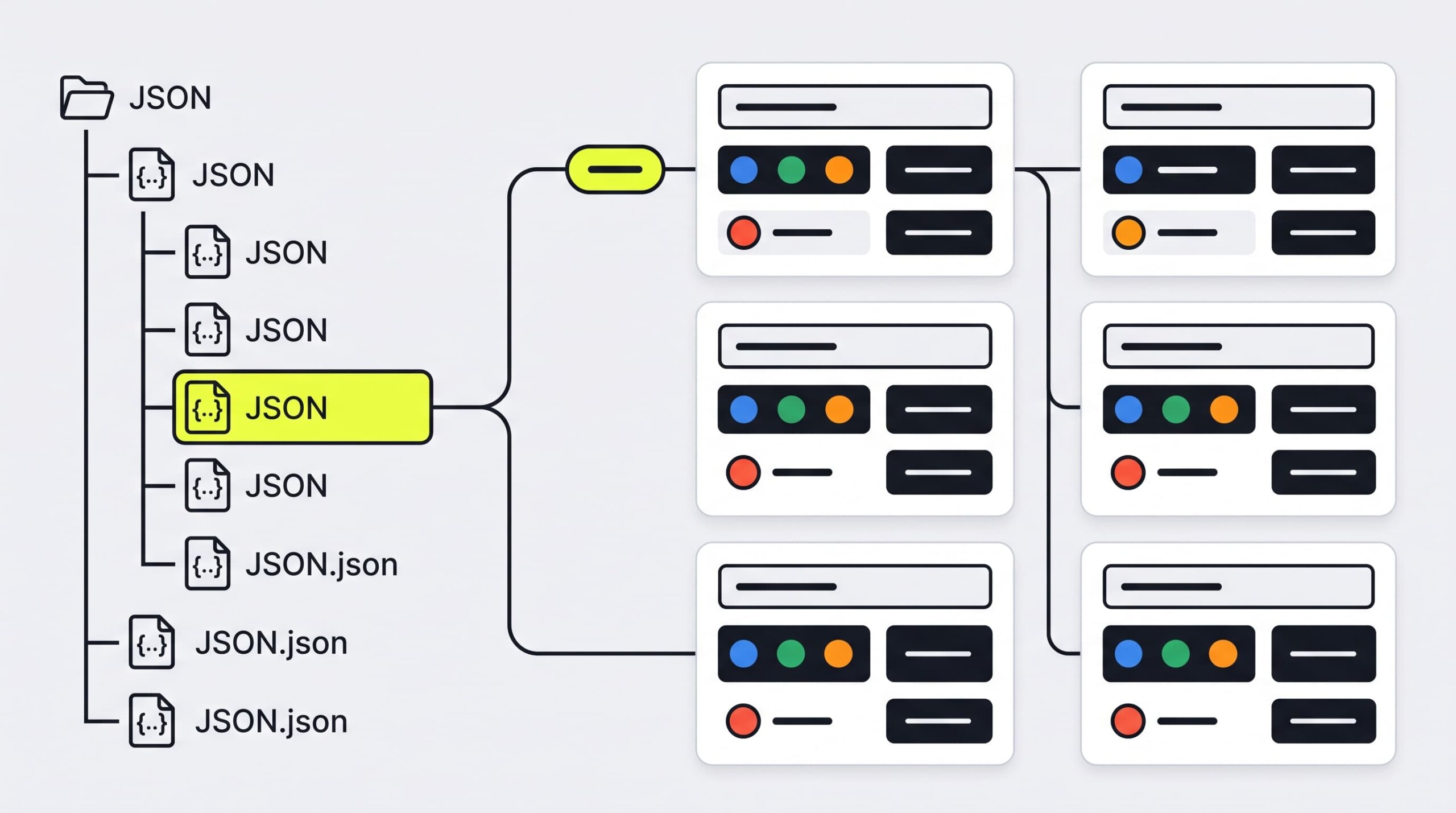
This method directly injects the required color_schemes configuration into your active theme. It resolves the problem immediately without losing your existing page layout settings.
Step 1: Open Your Theme Code Editor
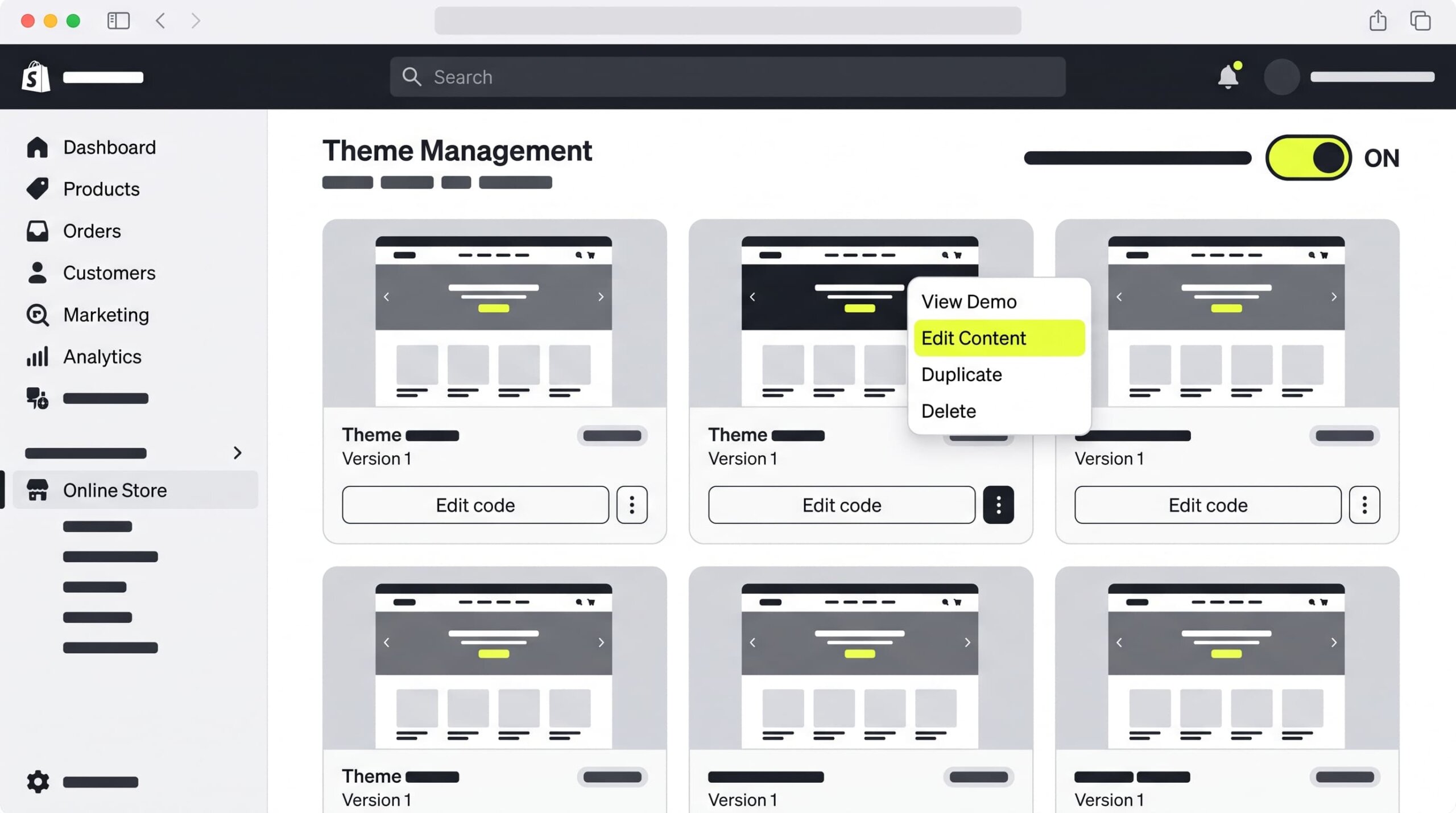
Log into your Shopify Admin panel. Navigate to Online Store > Themes. Locate your active Dawn theme, click the three dots (…) action menu next to the Customize button, and select Edit code to open the theme editor.
Step 2: Locate config/settings_data.json
In the left-hand code directory tree of your theme editor, expand the config folder. Click on settings_data.json to open it in the editor window.
Step 3: Insert the Correct color_schemes Structure
Scroll inside settings_data.json until you find the "current" block. Look for the "content_for_index" line or the top of the "settings" object.
If the "color_schemes" block is missing, paste the following valid JSON code inside your "current" configuration object to restore default color_schemes presets:
"color_schemes": {
  "scheme-1": {
    "settings": {
      "background": "#FFFFFF",
      "background_gradient": "",
      "text": "#121212",
      "button": "#121212",
      "button_label": "#FFFFFF",
      "secondary_button_label": "#121212",
      "shadow": "#121212"
    }
  },
  "scheme-2": {
    "settings": {
      "background": "#F3F3F3",
      "background_gradient": "",
      "text": "#121212",
      "button": "#121212",
      "button_label": "#FFFFFF",
      "secondary_button_label": "#FFFFFF",
      "shadow": "#121212"
    }
  },
  "scheme-3": {
    "settings": {
      "background": "#121212",
      "background_gradient": "",
      "text": "#FFFFFF",
      "button": "#FFFFFF",
      "button_label": "#121212",
      "secondary_button_label": "#FFFFFF",
      "shadow": "#121212"
    }
  },
  "scheme-4": {
    "settings": {
      "background": "#000000",
      "background_gradient": "",
      "text": "#FFFFFF",
      "button": "#FFFFFF",
      "button_label": "#000000",
      "secondary_button_label": "#FFFFFF",
      "shadow": "#FFFFFF"
    }
  },
  "scheme-5": {
    "settings": {
      "background": "#EBF4F6",
      "background_gradient": "",
      "text": "#071952",
      "button": "#071952",
      "button_label": "#FFFFFF",
      "secondary_button_label": "#071952",
      "shadow": "#071952"
    }
  }
}
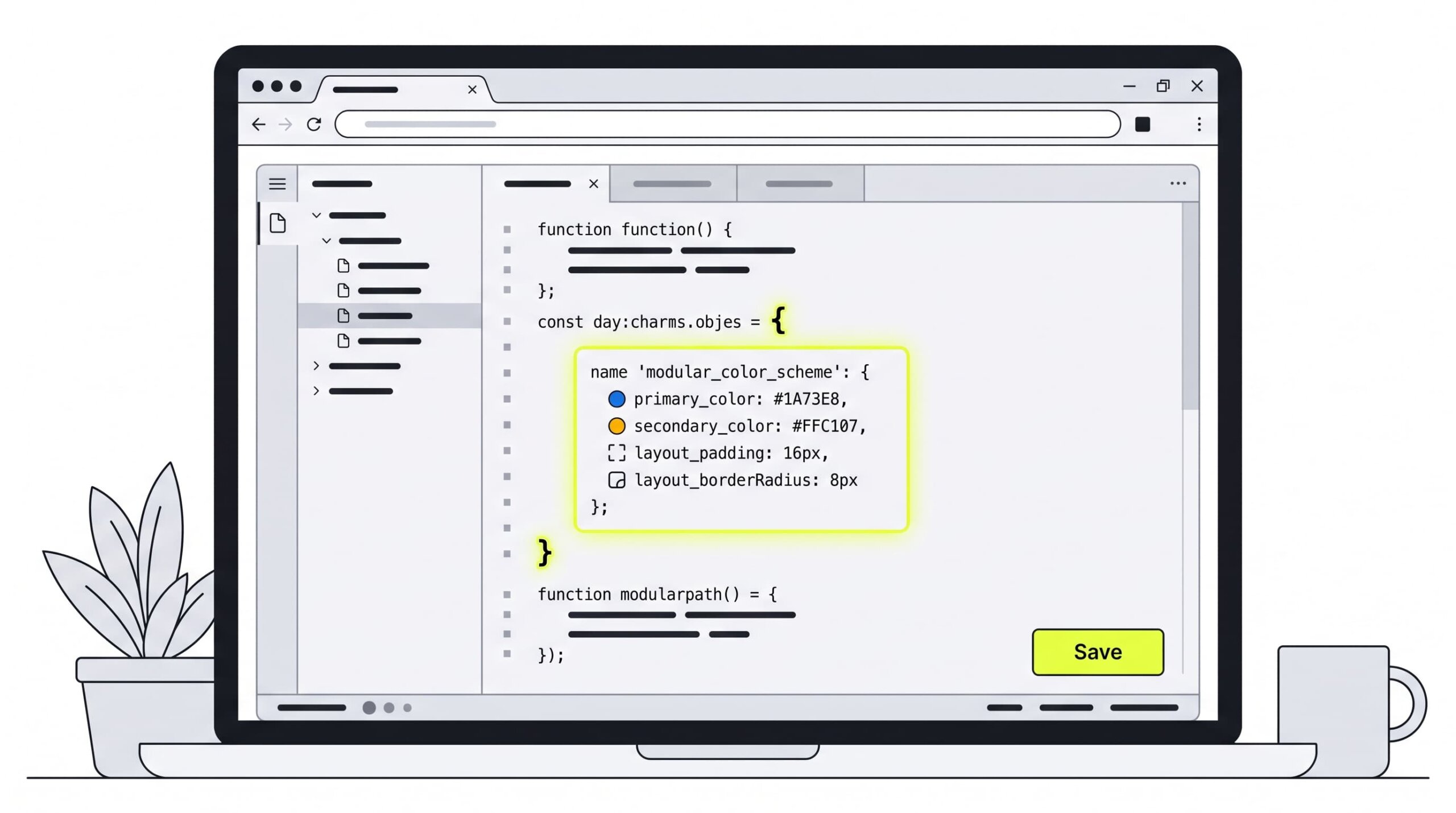
Tip: Ensure proper JSON formatting. Place a comma before adding "color_schemes" if it follows another JSON key. Do not leave a trailing comma after the closing curly brace } of the last scheme object.
Click Save in the top right corner. Refresh your customizer panel to confirm that the missing schema error is resolved.